
Creating a new design system to improve accessibility, efficiency and consistency
Impact

Improved conformance to WCAG 2.2 Level AA guidelines with redesigned components
Increased efficiency with re-usable components and clear documentation
High level of adoption through rapid integration of new components
Story
Overview
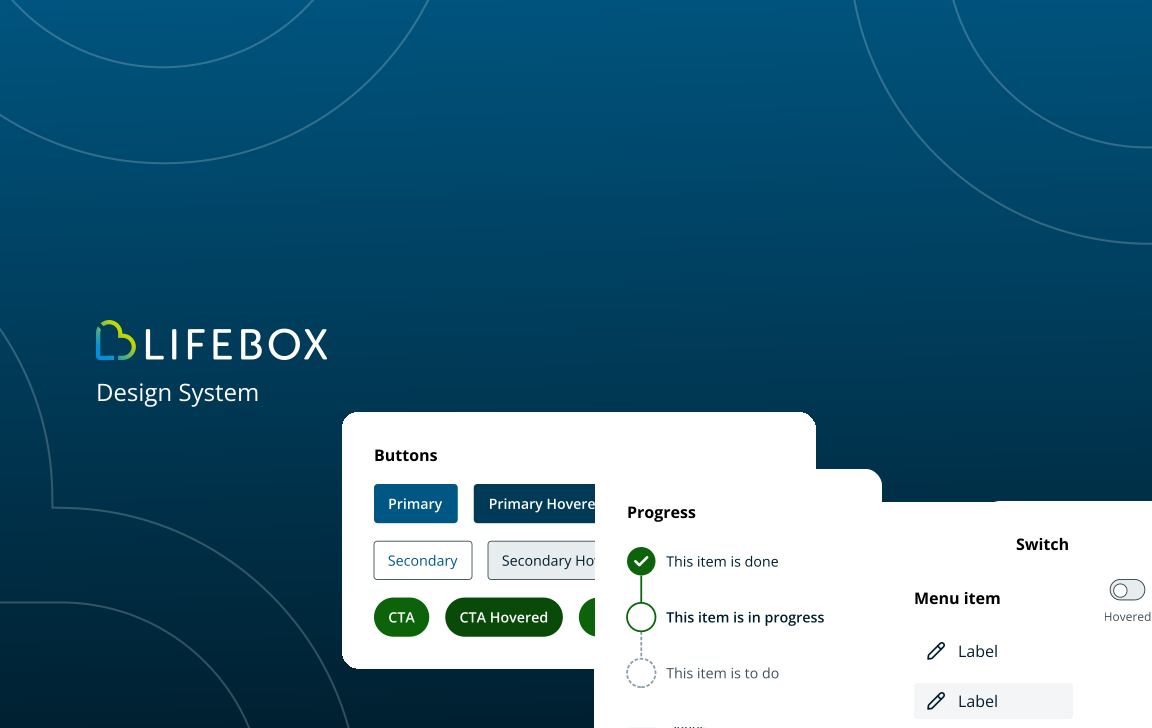
This was a project to create a new design system for Definition Health to solve challenges around developer efficiency, accessibility and mobile friendliness for LifeBox users. I was sole designer for the components, style and documentation of the system, building the components in Figma to be used as team libraries. I led and managed the design system project, communicating updates company-wide, budgeting, planning work and coordinating with key stakeholders.
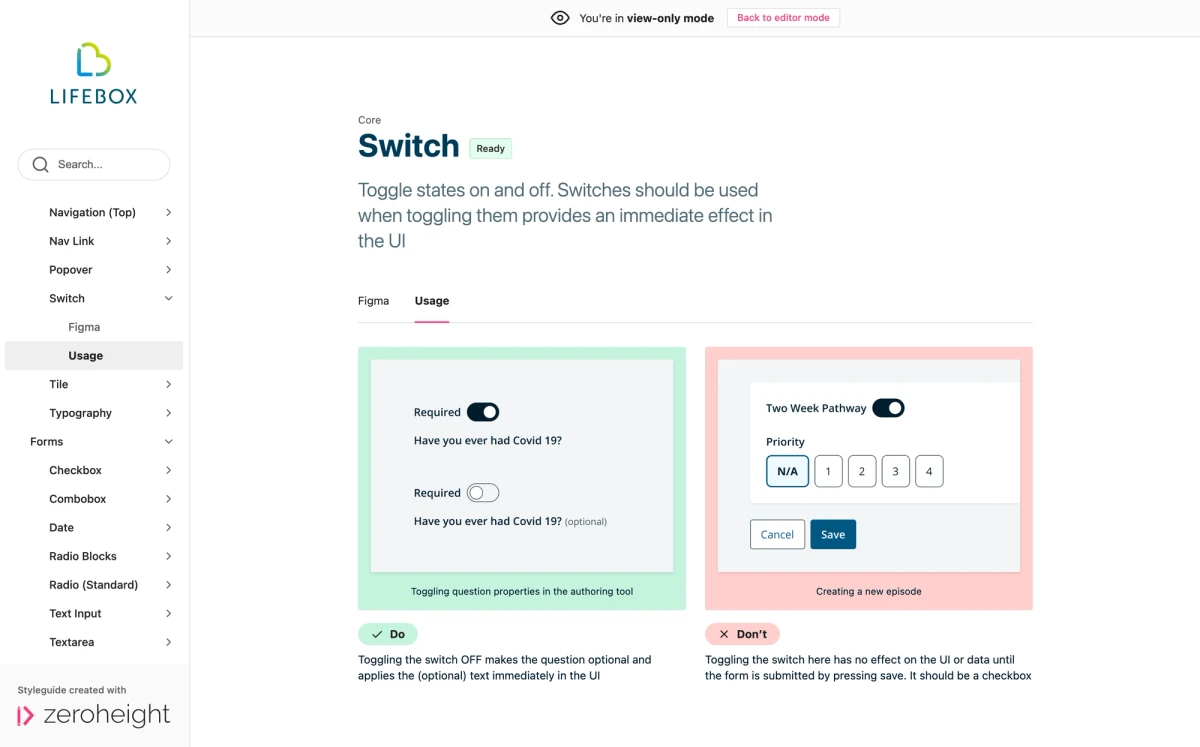
The Zeroheight site provides a clear structure and suitable components for explaining design decisions.
The Challenge
Definition Health had clear business objectives driving the need for a design system. This was both in commercial terms, such as meeting RFP requirements and NHS standards for integration, and for internal efficiency and user experience where after years of evolving the product, many inconsistencies had crept in.
- Challenges to address:
- Existing UI not meeting NHS standards for integration
- Unnecessary barriers to inclusion
- Lack of clarity around work needed to improve accessibility
- Inefficiency in engineering stemming from accommodating different design choices
- Inability to know which patterns and components were the ‘right’ ones to use when designing changes to the UI
- No assets in Figma so everything needed to be created from scratch
- Icons from different sets, no visual consistency
With good buy-in from senior leadership, a clear commercial benefit, and a moral imperative to improve accessibility, I didn’t need to persuade anyone that a design system would be a good thing. But I did need to understand “the gap”. Where were we now and where did we want to get to?
Step 1: Project Kickoff
To align key stakeholders with the goals of the project, I used the Design System Canvas to understand and communicate scope, constraints and expectations.
Using the design system maturity scale was helpful for us to think about our starting point and track our progress so we could measure our level of success.
I also ran a Lean Coffee discussion with the engineering team to understand what design system related concerns and aspirations were on their minds.
To promote the design system initiative more widely, I presented a design systems 101 to all staff in the company so that everyone understood the importance and expected impact of this work. I wanted my colleagues to feel excited about the future of product design at Definition Health.
As the work progresed, I regularly published blog posts and updates on Slack explaining the rationale for changing the UI.
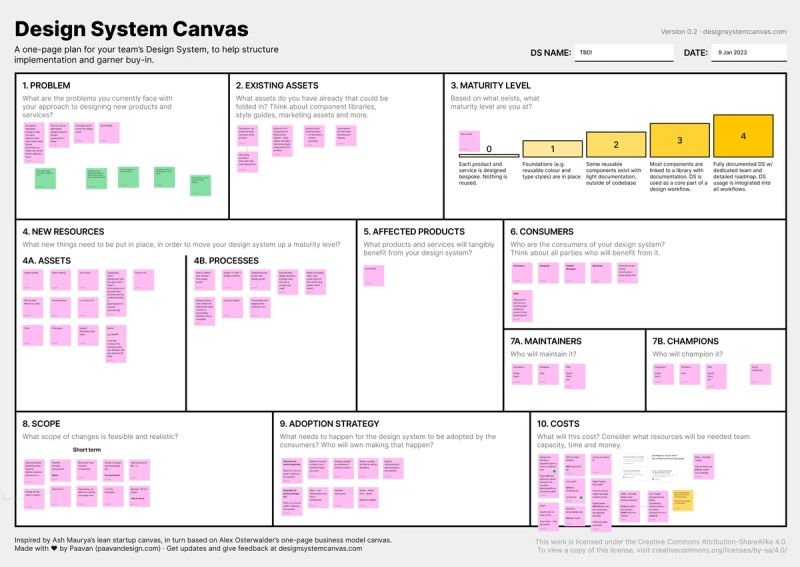
The design system canvas was a great tool for aligning stakeholders
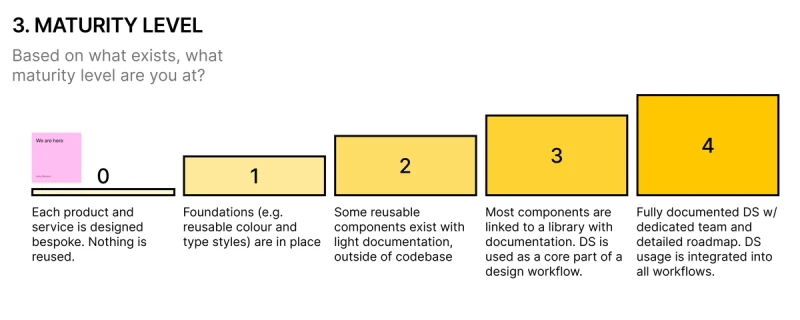
The design system didn't exist yet, so we rated ourselves at 0 on the design system maturity scale because even though some colour variables existed in CSS, they were not used consistently and many custom colours had crept in
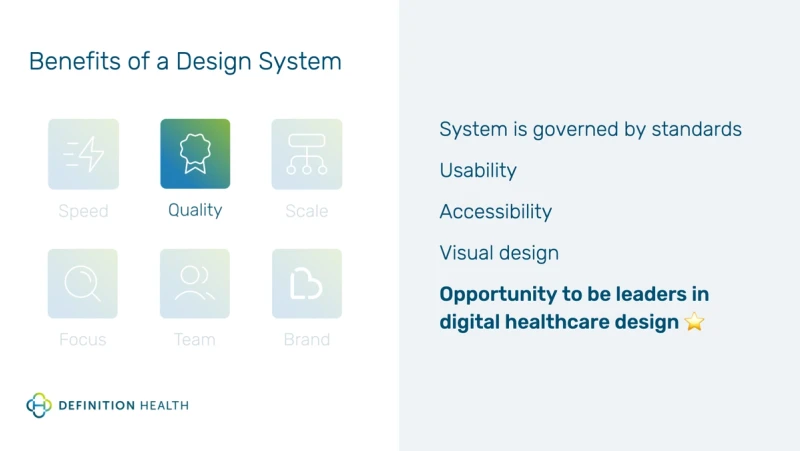
A slide from a design systems 101 presentation that I gave to the company. It was an important primer for follow up information as the design system evolved and integrated into the existing product
Step 2: UI Audit
Next, I completed an audit of the current LifeBox UI, capturing every distinct piece of design as screenshots that I annotated in Figma. This helped to understand deeply what the needs across the product were and how rationalising with re-usable components could help. It was also a really useful artifact for helping to estimate and scope work relating to integrating new components into the existing UI.
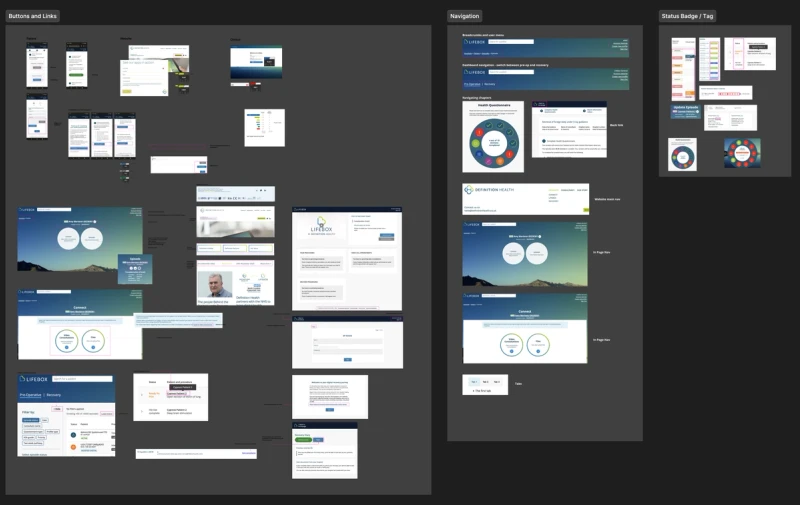
A sprawling Figma canvas with every existing piece of UI documented and grouped by category / usage. This enabled me to create a list of items to be addressed and backlog them in their own Jira project. Now we had some decisions to make…
Step 3: Scoping and tech decisions
How should we store and manage design tokens?
I wanted tokens to be under the control of designers but easy to update and keep in sync with code, so tokens were stored in a git repo and managed via Figma with the Tokens Studio Pro plugin. Tokens Studio allowed me to generate shared styles from the token set to apply across components in Figma. The deployment pipeline translates these tokens with style dictionary to turn them into usable CSS variables in the web app.
How should we name design tokens?
After doing a lot of research on this topic and studying some well established design systems, I settled on the following structure as I thought it would be able to scale well for our needs. This gave us a consistent way to approach naming tokens to speed up decision making and make naming more predictable.
system.concept.property.variant.state
e.g.
lbds.color.background.primary.default
Inspiration for this came from Nathan Curtis and his excellent blog post on naming tokens in design systems.
Should we use an off the shelf library like Google Material?
This was considered, but ultimately I felt that we would end up needing to extend it with custom components and customise it heavily to suit our needs. With this in mind, it may have ended up taking more work to maintain it than something custom built. A competitor had already built their UI with material so it would have been difficult to seem distinct from them in terms of our visual design and interaction. With the skills and backing we had in the business, going off the shelf was less advantageous for us.
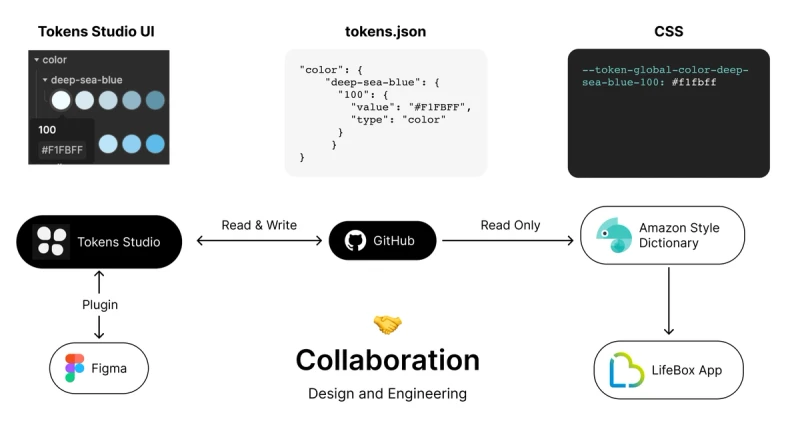
How tokens are passed around and translated at each stage of the pipeline
The Solution
I knew that establishing the foundational elements quickly would allow us to make rapid improvements and gain buy-in for future changes. Instead of a full scale UI redesign, I focused on evolving the existing styles, refreshing both the visuals and code to keep aligned with our accessibility goals. My aim was to maximise the footprint of new components in the UI to subtly evolve the interface as we worked through the backlog.
Colours
I started out by defining colours. Since we already had a well established UI, I focused on establishing semantic colours like danger, warning, info and adding in a few accents that could be used in badges and charts. I took the brand colours and used palette generation tools to make sure the new hues were harmonious as well as capable of providing good contrast to meet accessibility guidelines.
I built out the colour palette in Figma, generating tokens and shared styles to use across projects.
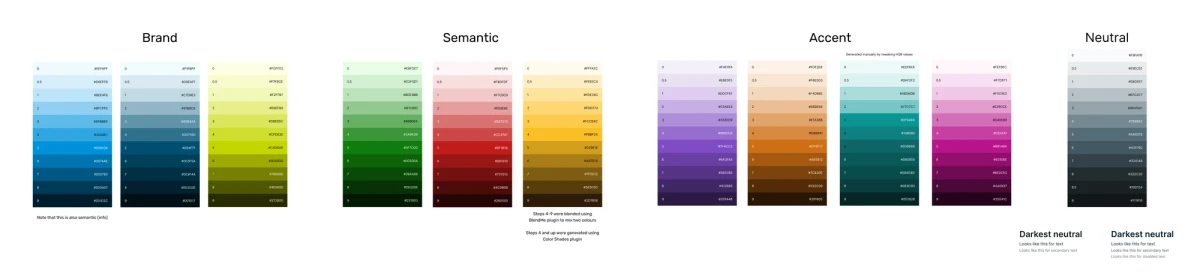
The full generated palette of global colours. For use across all design output. A subset of these are used in the app UI
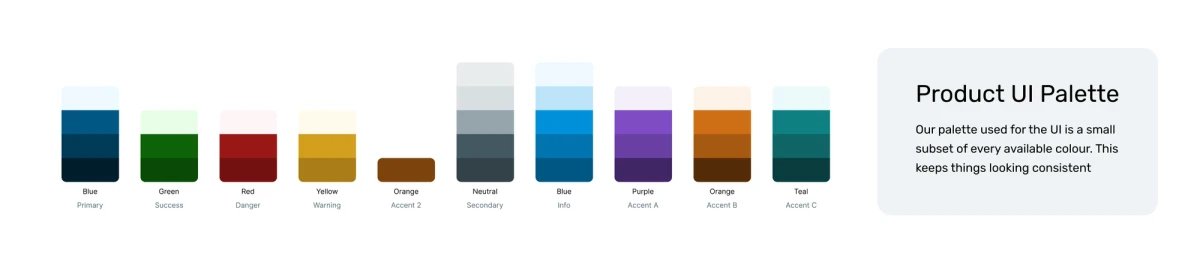
The product UI palette, strictly limited and semantically named
Spacing and typography
Spacing and typography had to come next, as buttons depend on it for their structure and labels, giving us a huge increase in new component footprint once integrated.
Spacing was based on a 4px baseline grid and along with basic values (4, 8, 12, 16 etc) I set up semantic configurations that would handle all 4 values in one. Thanks again Nathan Curtis for your article about applying space with intent.
The typography component was designed to be highly flexible, allowing authors to define which HTML element it renders. This separation of markup from visual presentation is particularly useful for maintaining proper heading hierarchy in the code (critical for screen reader users) while still enabling unique visual treatments when needed.
By setting up the component with variants for size, weight, colour, and type (e.g., heading, body text), it became easy to use in Figma with tight control, while also providing developers with enough flexibility to avoid workarounds in edge cases.
While this approach works exceptionally well in code, it hasn't translated as smoothly into the day-to-day realities of Figma. Over time I have encountered challenges when using variables, especially as the component becomes deeply nested in other components. Switching variants with modes and variables fails to preserve overridden text values, undermining the benefits of these advanced features. Sadly it's a known frustration with Figma and there's no sign that things will improve soon. In hindsight, I'd consider relying more on shared styles next time to keep things simple.
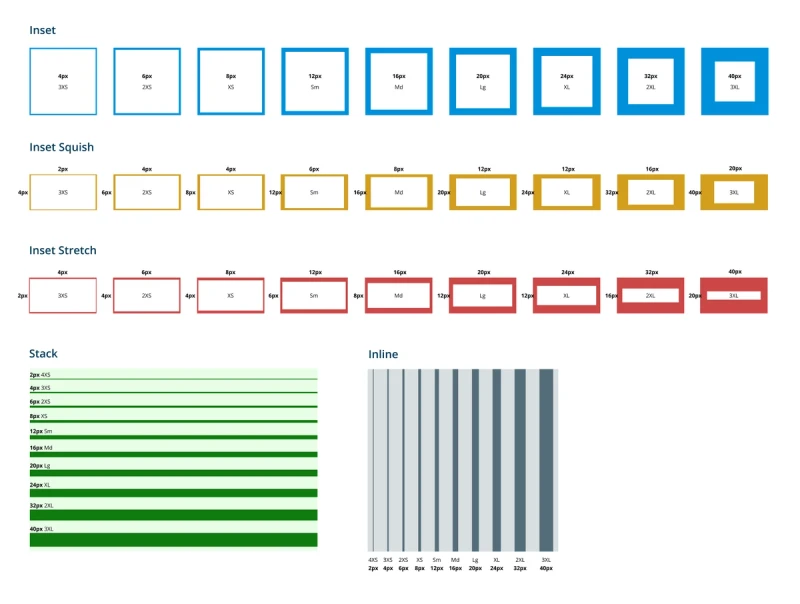
This visual documentation was really helpful for gauging the size and effect of the tokens
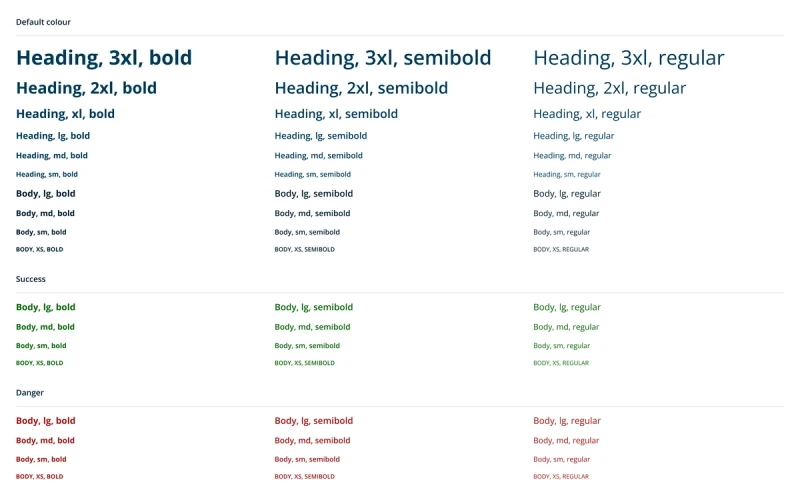
A selection of variants for the typography component
Buttons
One of the most critical elements of any web UI, buttons were sorely in need of improvement.
The primary and secondary buttons not only didn't meet AA level contrast requirements but they were also too similar in style to visually communicate the hierarchy of actions. If all colour was taken out of the UI, they would look almost indistinguishable.
To ensure these were accessible and distinct enough from one another, I decided to make the secondary buttons an outline style. I used our new accessible colours to update the button backgrounds. Props were added for icons to be placed left or right as well as a variant for icon only.
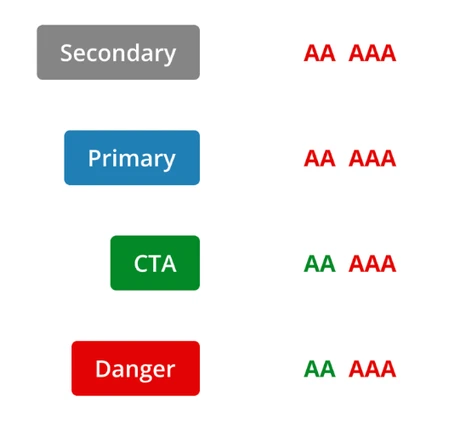
Contrast failures with our existing button styles
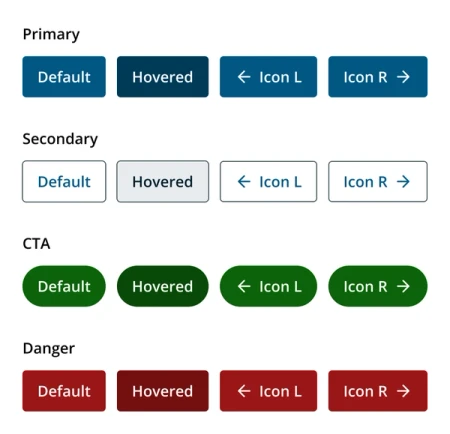
Accessible buttons that all meet enhanced contrast ratio guidelines for AAA conformance
Documentation
I wrote accompanying documentation in Figma to explain the available properties on each component.
I also blogged about significant updates so everyone in the company could understand why changes were being made. This kept everyone interested in the project and was a good way to demonstrate progress and celebrate milestones.
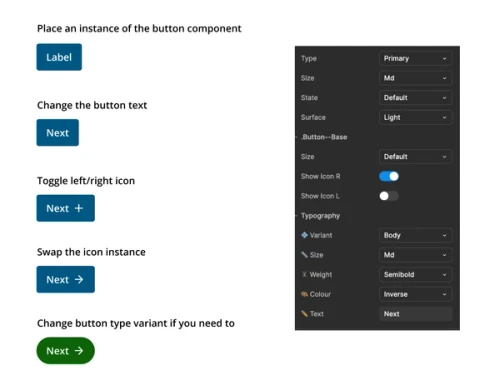
Instructions for using the button component in Figma
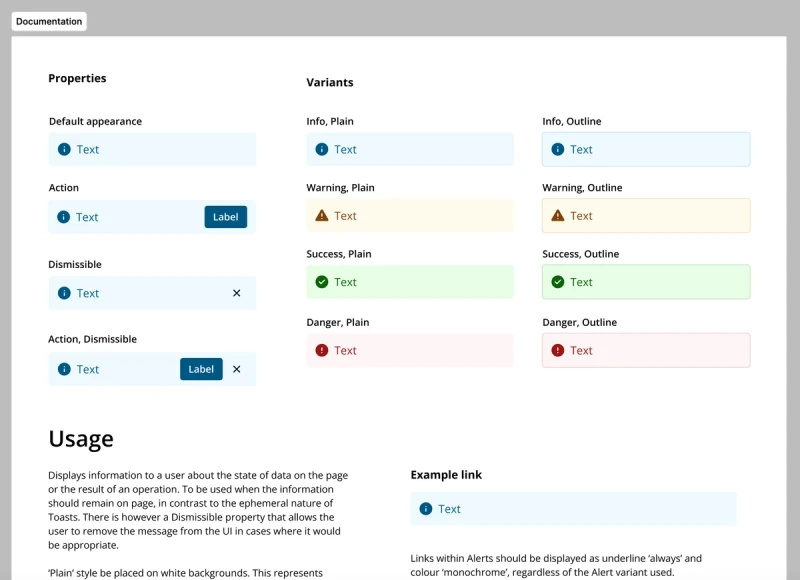
A documentation section in Figma demonstrating available props and variants
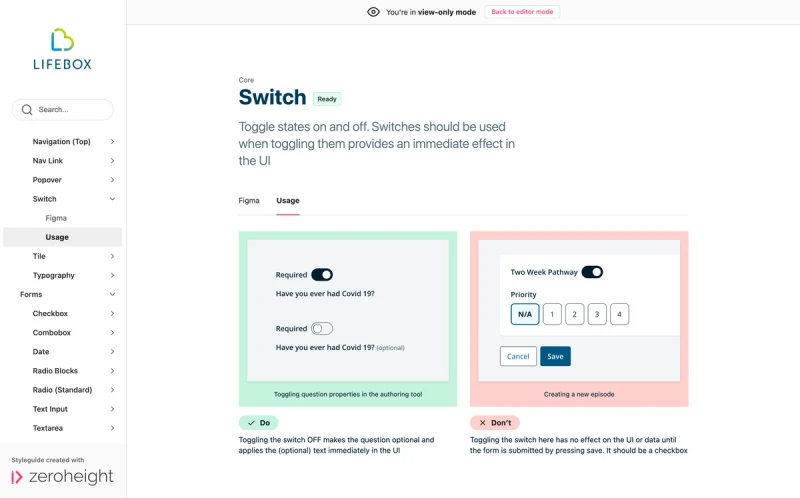
The Zeroheight site provides a clear structure and suitable components for explaining design decisions.
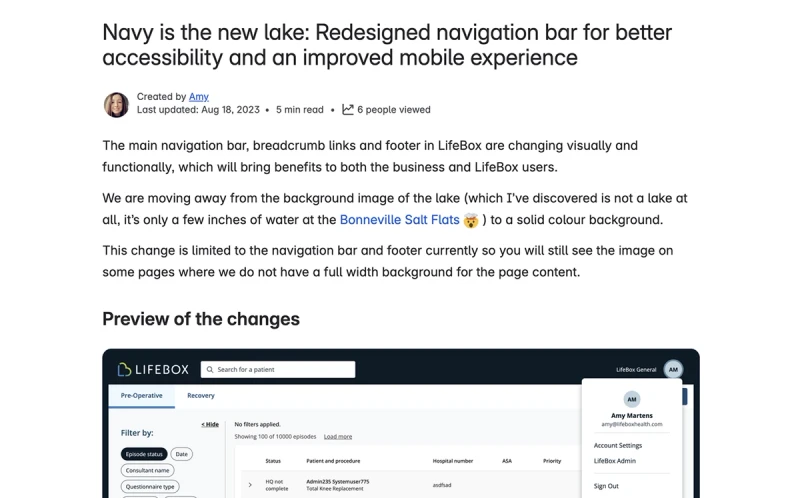
Example of a blog post about the redesigned navigation bar. Explaining design rationale helped to build trust in design across the business
The Outcomes
Within just a few sprints, the new design system started to deliver heaps of value for Definition Health. The UI was becoming more accessible for patients and hospital staff, developers had reliable components to work with and I had a solid UI kit built in Figma, enabling me to craft new designs at speed.
This great foundation has powered the next wave of design and dev work to keep improving accessibility in the UI and has enabled the overhaul of the most problematic parts of the interface.
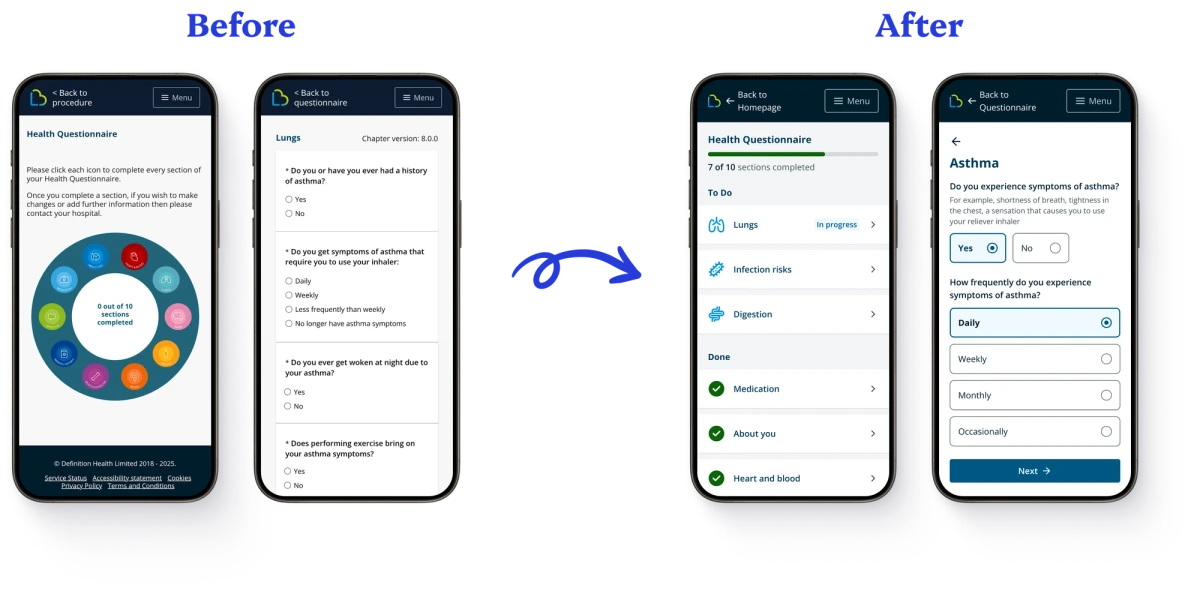
The circular questionnaire navigation posed several accessibility and usability challenges. Newly designed replacements drastically improved WCAG 2.2 Level AA conformance with increased touch target sizes and elements that passed contrast checks
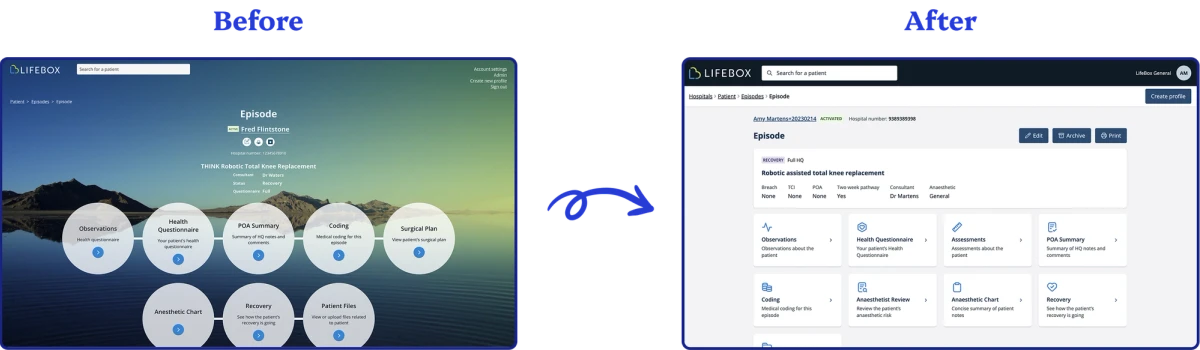
The hospital UI with new design system components integrated, reworked for responsiveness and accessibility